Event Management -> Documents
Step 1
> Click on 'Event management'
> Then 'Documents'
Step 2
> Click on 'Upload Documents' in the top right corner
Step 3
> Select 'Browse..' or drag and drop your file into the Field
> Make sure the format for the file is either a PDF or Zip file
Step 4
> 'verify File', 'Test File'
> Select 'Upload and Create documents'
You have successfully uploaded a Document which is ready to be assigned to a guest!
Uploading Documents (with screenshots)
Please note: Documentation containing personal identifiable information (PII) will be displayed to guests in the mobile app. For documentation that is not required to be displayed to guests and may contain PII, these can be uploaded using 'Travel Documents' located Planning > travel documents.
If you have a small number of documents you require on your event, uploading individual documents in the form of PDFs is a quick and easy way.
Start by clicking on 'Event Management' on the left side menu and select 'Documents'. Here you will see any existing documents that have been uploaded and have the option to upload new documents.

>To add a new document Click on 'Upload Documents' in the top right corner.
- Here you can either drag and drop your files or 'Browse..' for documents on your computer.
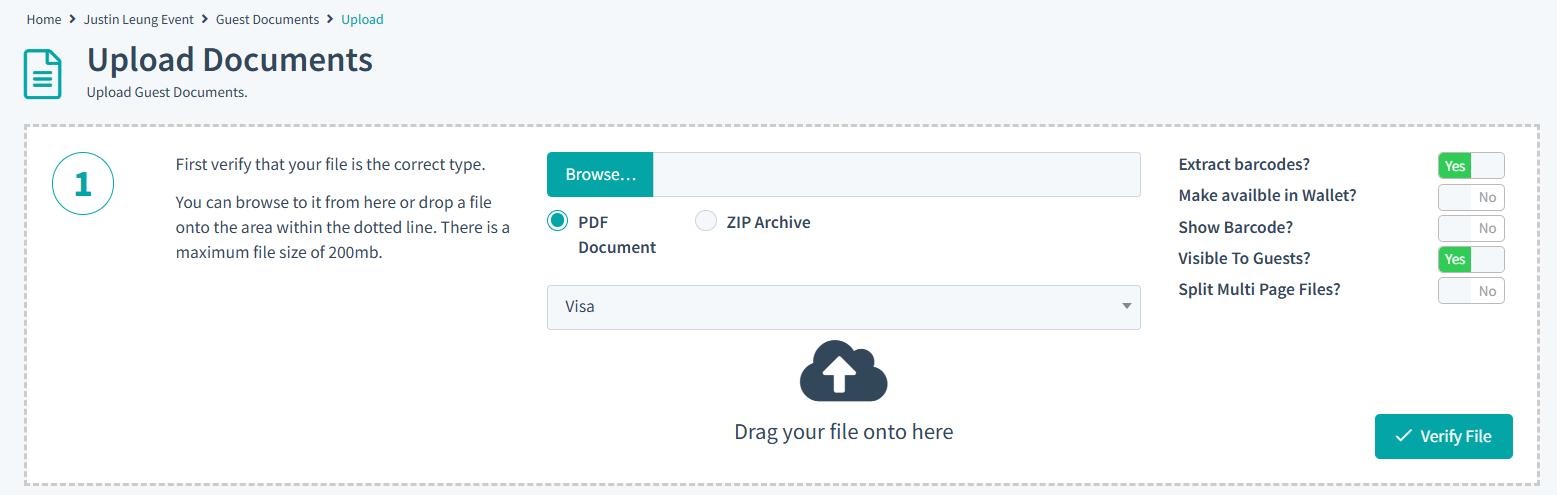
Once you have added the document, the import process can begin.
> Click on Verify File
> Once verified the next stage will be to Test File
> Once passed testing you will have the option to 'Upload and create documents'
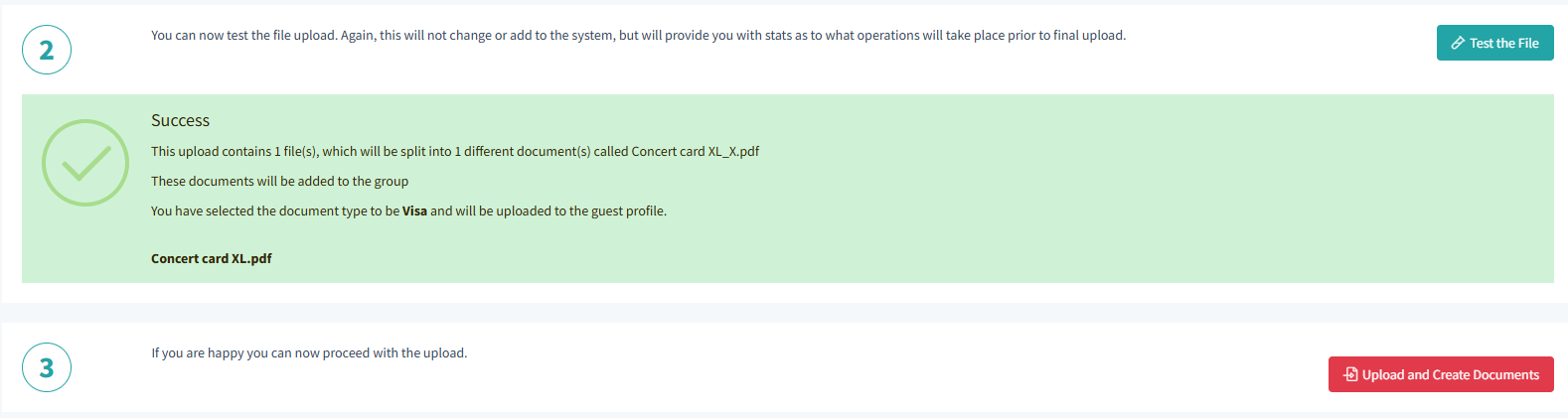
Now you have successfully uploaded an individual document to your event which can be seen in the main document page! (Event management > Documents)
To Bulk upload use the Zip Archive option and place a zipped folder with many documents within it.
Was this article helpful?
That’s Great!
Thank you for your feedback
Sorry! We couldn't be helpful
Thank you for your feedback
Feedback sent
We appreciate your effort and will try to fix the article