Reporting > Select Report > Configure
Configuring a report enables you to customize how data is presented in the report to meet your needs.
To configure a report please complete the following steps;
Step 1
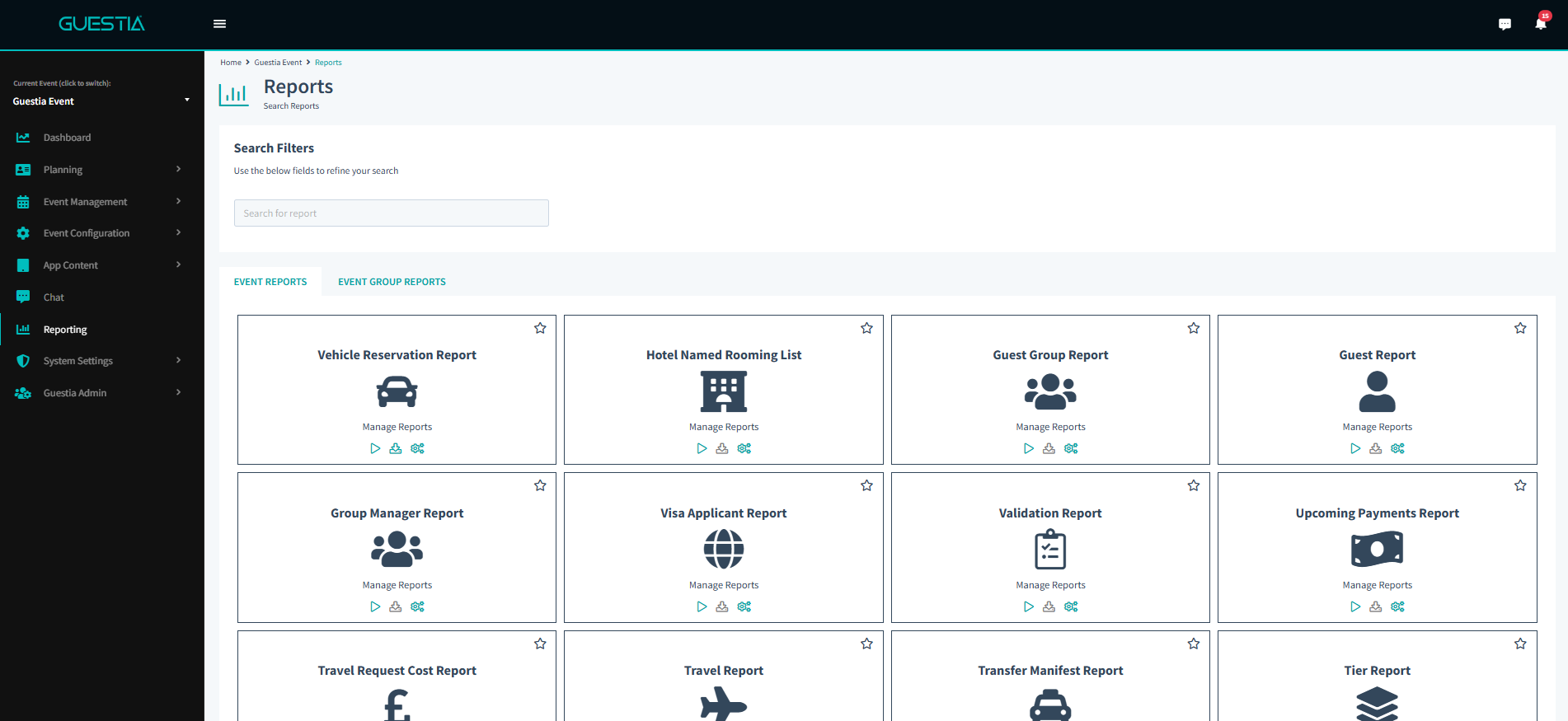
Click on "Reporting" found in the left-hand menu index.
Step 2
Select the report you would like to configure.
Step 3
Click on the report, or on the cog icon below the report.
Step 4
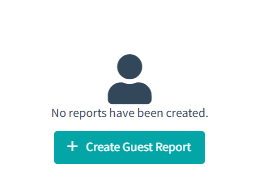
If a report has yet to be run, click + Create (Report Type) Report
Step 5
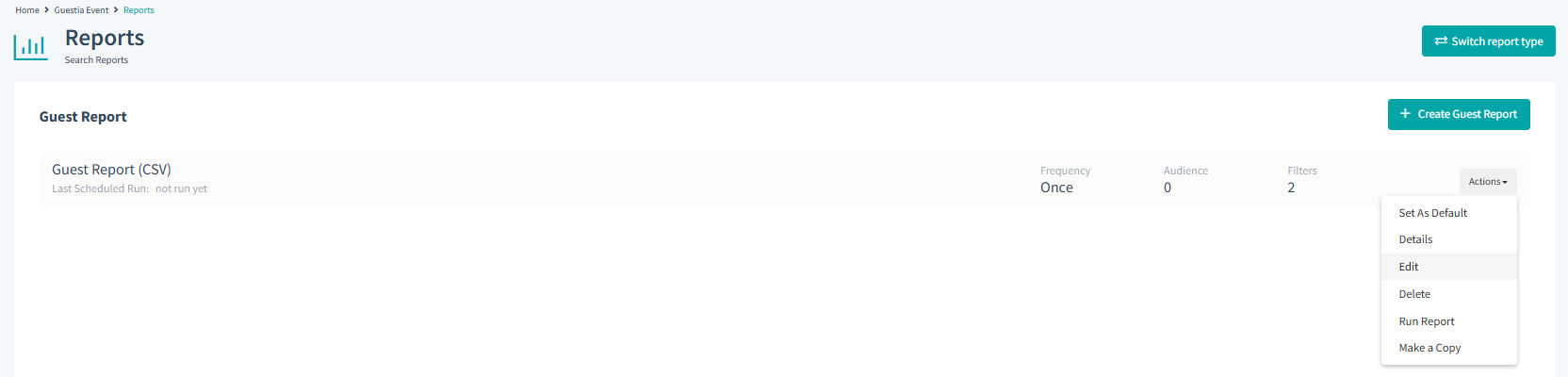
You will then have the option to configure the data to ensure the report's date aligns with your needs. If
a report has already been generated, simply click the configure icon > Actions > Edit
You have successfully configured a report!
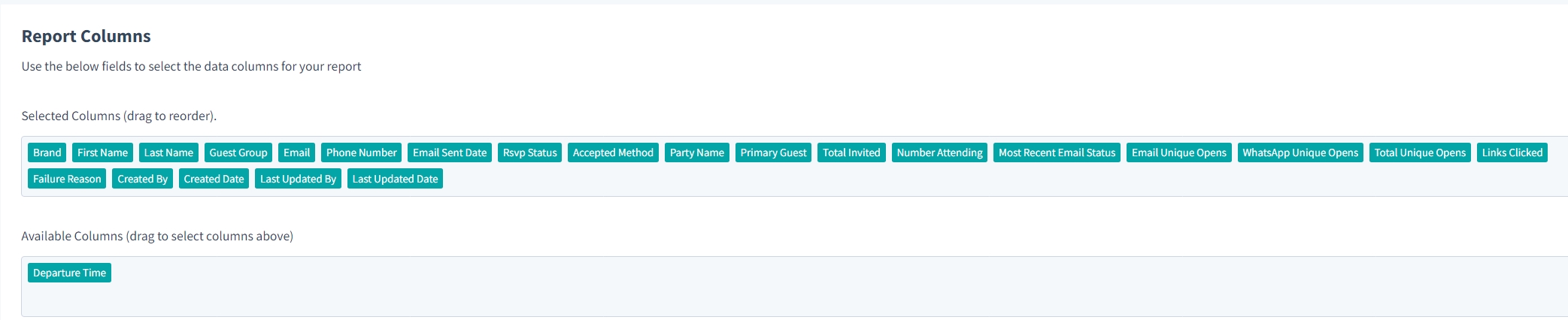
**RSVP reports are different from all other reports during configuration because they offer a drag-and-drop feature that allows you to modify selected column headings.
Was this article helpful?
That’s Great!
Thank you for your feedback
Sorry! We couldn't be helpful
Thank you for your feedback
Feedback sent
We appreciate your effort and will try to fix the article