

How to Download a Report

Modified on Mon, 22 Dec at 12:39 PM

Reporting > Select Report > Download Last Run Report 


Downloading a report saves a copy of the report onto your device. 


To download a report complete the following steps:


Step 1

Click on "Reporting" found in the left-hand menu index.


Step 2

Click on the report you would like to download.


Step 3

If you have not already ran the report you want to download click Actions > Run Report

If you have already ran the report then click Actions > Download

Extra

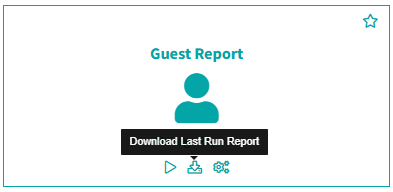
To quickly download the last report that was run. Find the report you would like to download and click the middle icon Download Last Run Report.


You have successfully downloaded your report!


*Note: When you download a report, the system will download the most recent report. Newly configured reports must be ran before they can be downloaded.  


Was this article helpful?

That’s Great!

Thank you for your feedback

Sorry! We couldn't be helpful

Thank you for your feedback

Let us know how can we improve this article!

Select at least one of the reasons
CAPTCHA verification is required.

Feedback sent

We appreciate your effort and will try to fix the article